Add Your Kids
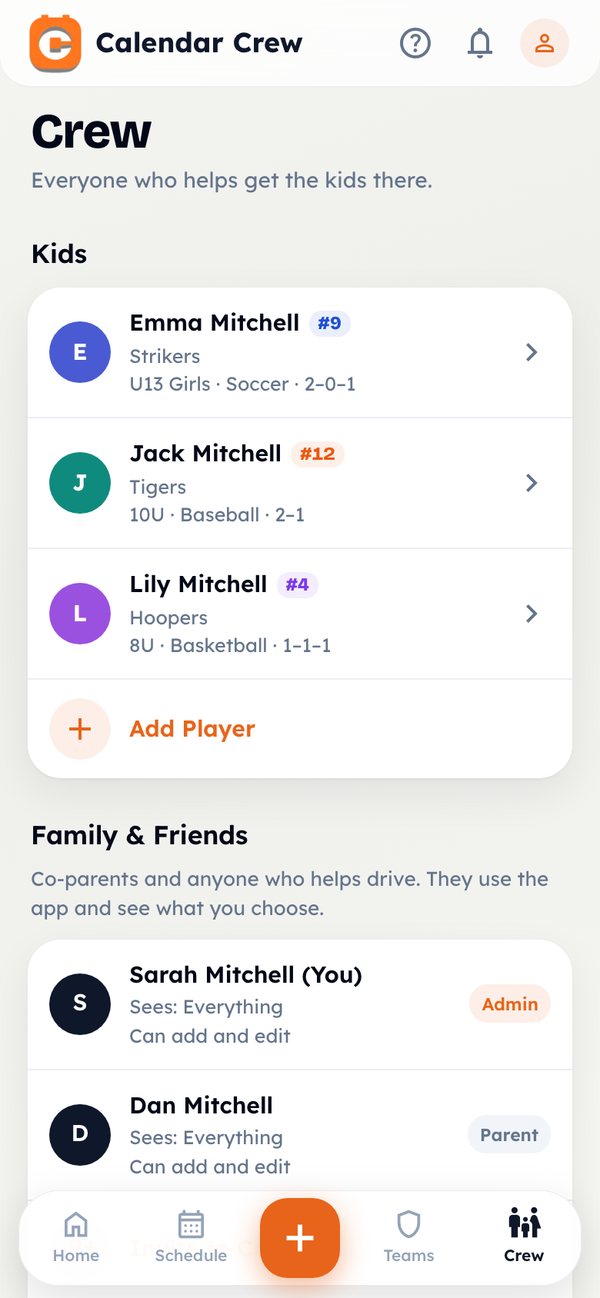
Each kid gets their own color, so you can tell at a glance whose game is whose.
Add a Kid
- Tap Crew → Add Player. (Or tap + → Add Player.)
- Enter their Name and Main Sport.
- Pick an Avatar Color.
- Add a Birthday if you like. It's optional.
- Tap Add Player.
A family can have up to 6 kids on Free, or 12 with Crew Plus. Up to 4 kids from one family can be on the same team.
A Kid's Page
Tap a kid in Crew to see:
- Coming Up: their next events.
- Teams they're on, with the team's logo. Tap Add # to set their jersey number for that team.
- Game Log and Per Game stats from games you've scored.
- Share with Family: send a follower link for this kid. See Grandparents and Fans.
- Hand Off to Another Family: see Hand Off a Kid.
To change their name, color, sport or birthday, tap the edit button on their page, make your changes and tap Save.
Add a photo: in the same place, tap the circle and pick a photo. It shows on Crew, Home and the Schedule instead of their initial. We remove the photo's location info when you upload it.
Put a Kid on a Team
When you join a team with its code, put your kid on the roster so the team's games show with their name and color. See Create or Join a Team.
Remove a Kid
In Crew, swipe the kid to the left, then choose:
- Remove Player Only: removes the kid but keeps their events on the calendar.
- Remove Player & Schedule: removes the kid and their events.
Moving a kid to another family instead? Use Hand Off to Another Family so their schedule goes with them.
Kids don't have accounts. Parents add and manage everything about them, and only your crew can see it. Read our Privacy Policy.