Snap or Upload a Schedule
Got the schedule on paper, in an email or in a screenshot? Take a picture and we'll pull out every game and practice. You check them before anything is saved.
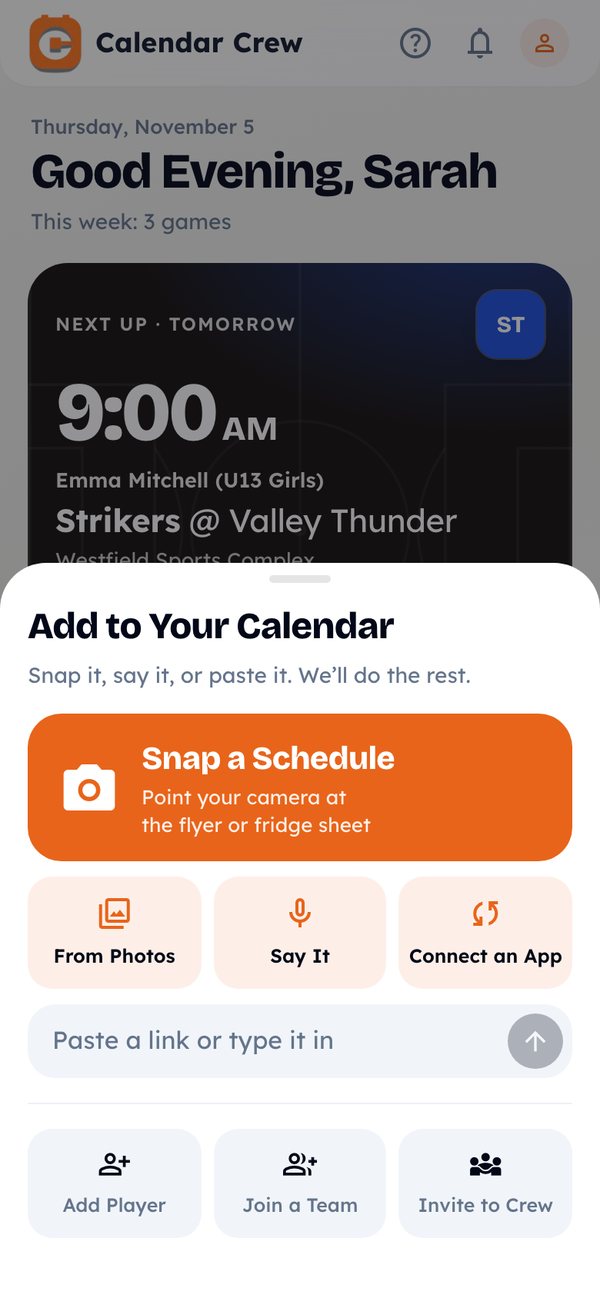
Snap a Photo
- Tap + → Snap a Schedule. Your camera opens.
- Take a photo of the flyer, the fridge sheet or the email on your computer screen.
- Wait a few seconds while we read it (usually 10 to 20 seconds).
- Check the events, then tap Add [number] Events.
Upload a Screenshot
Schedule in a group text, an email or a team website? Take a screenshot, then:
- Tap + → From Photos.
- Pick the screenshot.
- Check the events, then tap Add [number] Events.
Check Before You Save
The review screen shows everything we found.
- Who's this schedule for? Pick the kid. If it's a team's schedule, you can add it to that team or create the team right there.
- Needs a Look lists events with something missing, like no date or no location. Tap Edit to fix them.
- Tap any event to change the title, type, date, time, location or sport.
- Tap the ✕ on anything you don't want.
- If something is already on your calendar, we skip it so you don't get doubles.
When it looks right, tap Add [number] Events.
When the Schedule Changes
Got a new version of the same schedule? Snap or upload it again. We compare it with what's already on your calendar and show a Schedule Update: games that moved, new games, and games that were canceled. Tap Save Changes and your crew gets the update.
Tips for a Good Read
- Get the whole schedule in the photo, flat and in good light.
- For a long schedule, take a few photos and add each one.
- Handwriting works, but printed text works best.
- If we miss something, you can always type it in.
On Free, a family gets 5 schedule imports a month (photos, screenshots, links, voice and forwarded emails all count). Crew Plus imports as many as you need. See Free and Crew Plus. Either way, you can always type games in by hand.
Better: Connect the Calendar
If the team uses TeamSnap, GameChanger, a school calendar or any calendar link, connect it instead. Then new games and changes come in on their own. See Connect Team Apps and Calendar Links.