Home and Schedule
Home
Home shows what's next, so you can glance and go.
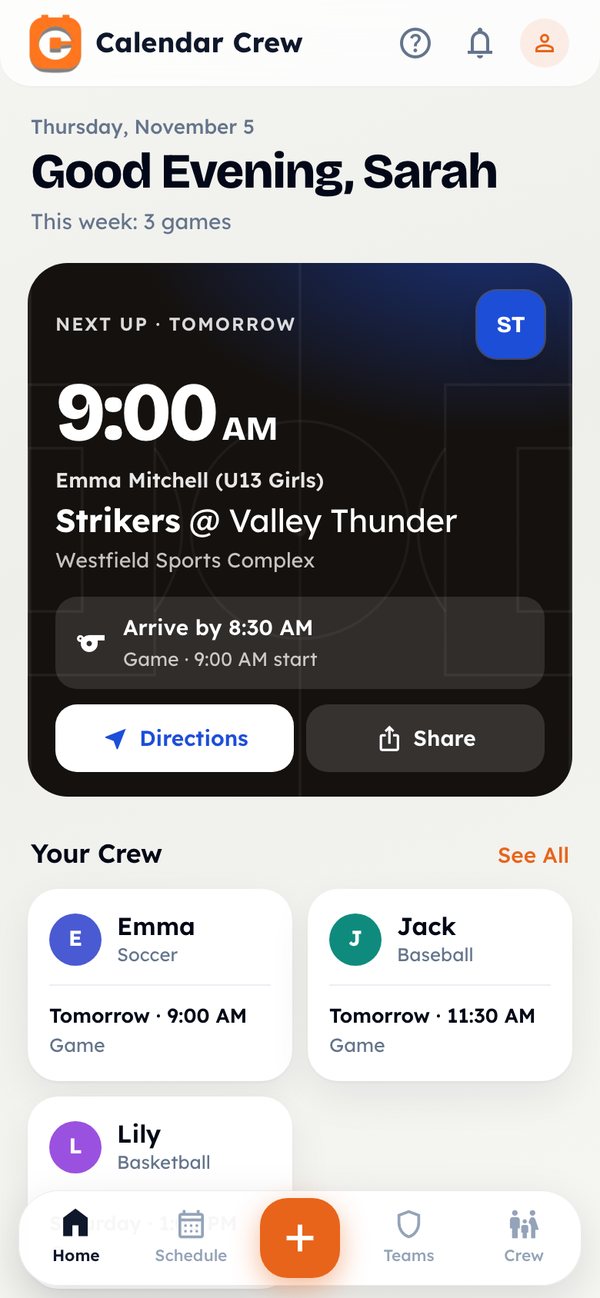
- Next Up: the next event, with who, when, and when to arrive. Tap the card to open it, Directions to get there, or Share to send it. When a game is under way, it shows the score and a button to Keep Score or Follow Live.
- Heads-ups: only real problems, like two events at the same time.
- Your Crew: each kid and what's next for them.
- After That: what's coming later in the week.
- Recent Games: scores from the last few games.
Schedule
Schedule shows every event for every kid. Pick how you see it at the top:
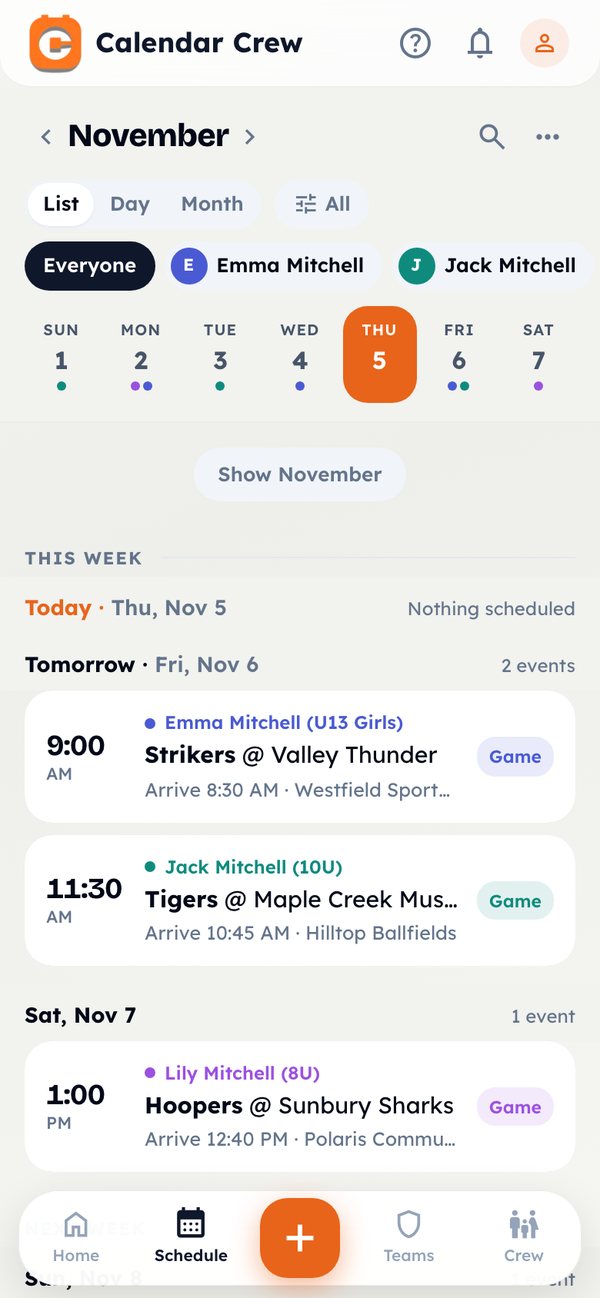
- List: one long list of what's coming, day by day. Scroll back to see past events.
- Day: one day, hour by hour, with a column for each kid.
- Month: the month grid, with that day's list underneath.
Turn your phone sideways to see the week hour by hour. On a computer, there's also a Week view.
Tap a day in the week strip or the month to jump to it. Tap Today to come back.
Filter What You See
- Kids: if you have two or more kids, tap a kid's name to see only their events. Tap again to see everyone.
- Type: tap the filter to choose All Events, Games & Tournaments, Practices, Needs a Driver (next two weeks, nobody driving yet), Recently Changed (time or place changed in the last 3 days) or Away Games.
Search
Tap the magnifying glass to search by team, opponent, place or title. Search looks through past events too.
More Options
Tap ⋯ at the top of Schedule:
- Select Events: delete or change several at once.
- Check for Updates: look for changes in your connected calendars now.
- Add to Phone Calendar: see Put Games on Your Phone's Calendar.
- Download .ics File and Print.
Overlaps
If two events for your family happen at the same time, Schedule points it out so you can sort out who's going where.
Add From the Schedule
Press and hold a day to add something on that day: Type It In, Snap a Schedule or Paste a Link.