Alerts and Notifications
Calendar Crew tells you when something changes, when it's time to leave, and when a drive needs a driver. You choose what you hear about.
Your Notifications
Tap the bell at the top of the screen to see everything that's happened recently. Tap one to go straight to that event, team or chat.
Turn On Alerts for This Phone
Alerts are turned on separately on each phone or computer you use.
- Go to Settings → Alerts.
- Turn on Alerts on This Phone.
- When your phone asks, tap Allow.
In the iPhone app, that's all you need. Tapping an alert opens the right page in the app.
In the web app on an iPhone, you first need to add Calendar Crew to your home screen (Safari → Share → Add to Home Screen), then open it from there and turn alerts on. Apple only allows alerts for web apps on the home screen. See Get the App.
On Android and computers, turn it on in the browser and allow notifications when asked.
What You Hear About
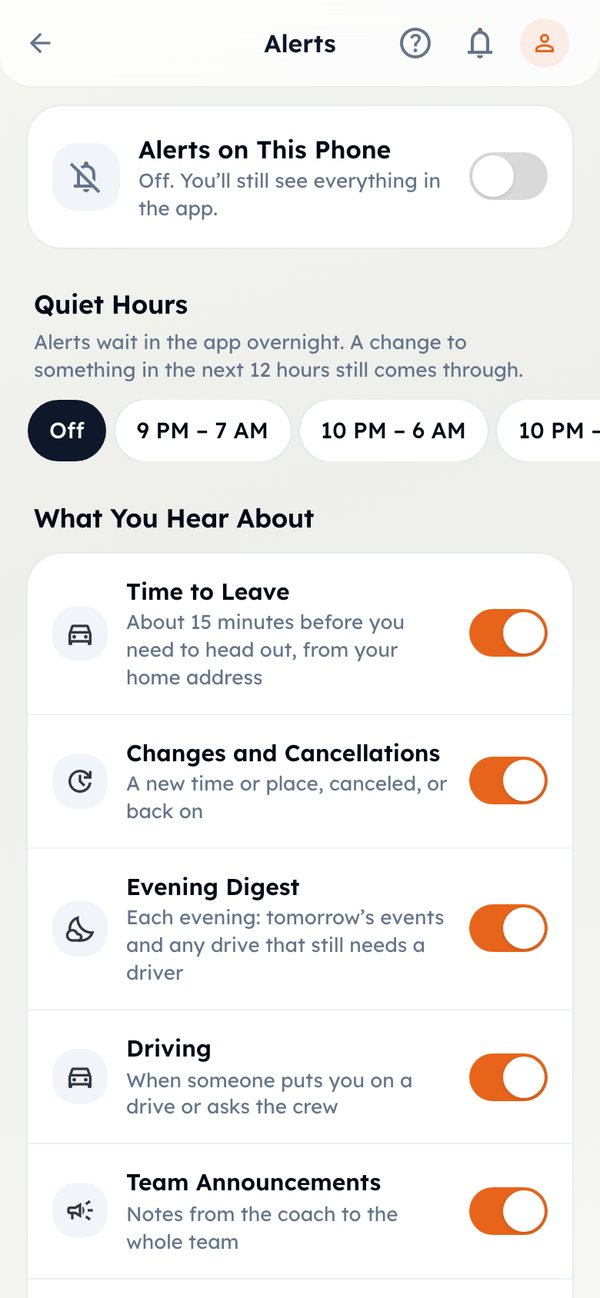
In Settings → Alerts, under What You Hear About, turn each one on or off:
| Alert | When |
|---|---|
| Time to Leave | About 15 minutes before you need to head out, from your home address |
| Changes and Cancellations | A new time or place, canceled, or back on |
| Evening Digest | Each evening: tomorrow's events and any drive that still needs a driver |
| Driving | When someone puts you on a drive or asks the crew |
| Team Announcements | Notes from the coach to the whole team |
| After the Game | A nudge to add the final score |
| New Events | When someone else adds to the schedule |
| Who's Going | When someone answers Going, Maybe or Can't Go |
| Chat | New messages from your crew |
Time to Leave needs your home address. Add it in Settings → tap your name at the top → Home Address. Time to Leave alerts are part of Crew Plus.
If you only see some of the kids in a family, you only hear about those kids.
Quiet Hours
Don't want your phone buzzing at night? Under Quiet Hours, pick 9 PM – 7 AM, 10 PM – 6 AM or 10 PM – 8 AM.
During quiet hours, alerts don't buzz your phone, but they're still in your notifications list. Changes to an event in the next 12 hours always come through, so you'll still hear about a 6 AM "game canceled."
Not Getting Alerts?
- Check that Alerts on This Phone is on in Settings → Alerts.
- Check your phone's settings: Settings → Notifications → Crew (iPhone app) or your browser's notification settings.
- On an iPhone web app, make sure you opened Calendar Crew from your home screen, not Safari.
- Still stuck? Tap Help & Feedback in Settings and tell us what's happening.