Team Calendar, Announcements and Roster
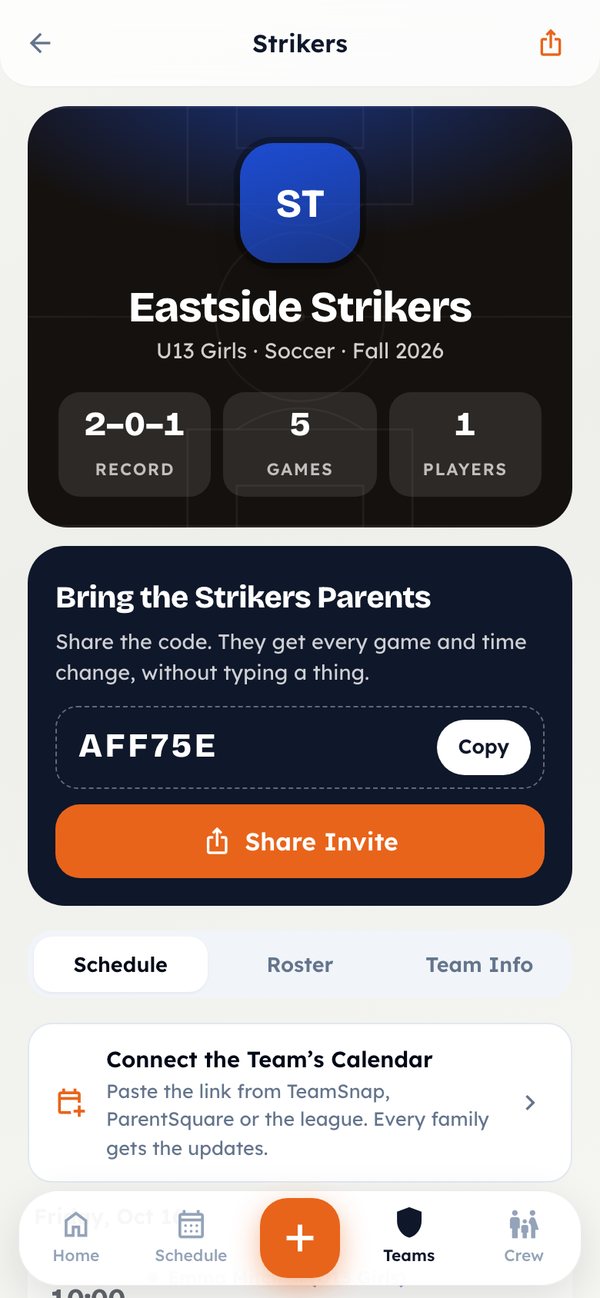
Open a team from Teams. At the top you'll see its Record, number of Games and Players, and the team code with Share Invite to bring the other parents.
Announcements
Team admins can post a note for every family: uniform color, a field change, snack duty.
- On the team page, tap Post to Team.
- Write the note, like "Bring white jerseys Saturday. Warm-ups start at 9:15."
- Tap Post. Every family on the team gets an alert.
Families can turn these alerts on or off in Settings → Alerts → Team Announcements.
Schedule and the Team Calendar
The Schedule tab lists the team's upcoming games and practices.
The team calendar card shows where the schedule comes from:
- Connect the Team's Calendar: paste the link from TeamSnap, ParentSquare, the league or the school. Every family gets the updates.
- Make It the Team's Calendar: you connected a calendar for your kid that's really the team's. Tap to move it to the team so every family gets the updates.
- Team Calendar Connected: it's set up, with when it last checked for changes.
See Connect Team Apps and Calendar Links for choosing Games Only or a level like Varsity.
Team admins can add a game or practice by hand: on the team page tap + → Quick Add or Type It In.
Roster
The Roster tab lists the players.
- Families add their own kids when they join with the team code.
- Team admins can tap Add a Player → Add to the Roster.
- To take someone off, swipe the player.
- Jersey numbers: tap Add # next to a player. A kid's parents or the team's coaches can set it, and it shows as #23 on the roster, in Crew and on the kid's page.
- Make Admin: a team admin can make any parent on the team an admin too. A team admin can change the team's schedule, calendar and coaches.
Coaches & Staff lists the coaches. Another coach joins with the team code, then a team admin sets their role: Head Coach, Assistant Coach or Team Admin.
Following the Team lists families who follow the team's schedule.
Team Info
The Team Info tab shows the team's details. Team admins tap Edit Team to change:
- Team Name, sport, Level, League and Season
- Team Color and logo
- Usual Field: new practices start on this field
- Arrive for Games and Arrive for Practices: how early players should get there
Delete Team is at the bottom.