Create or Join a Team
A team in Calendar Crew is shared by every family on it. One parent adds the schedule, and the whole team gets it, changes included.
Join a Team With a Code
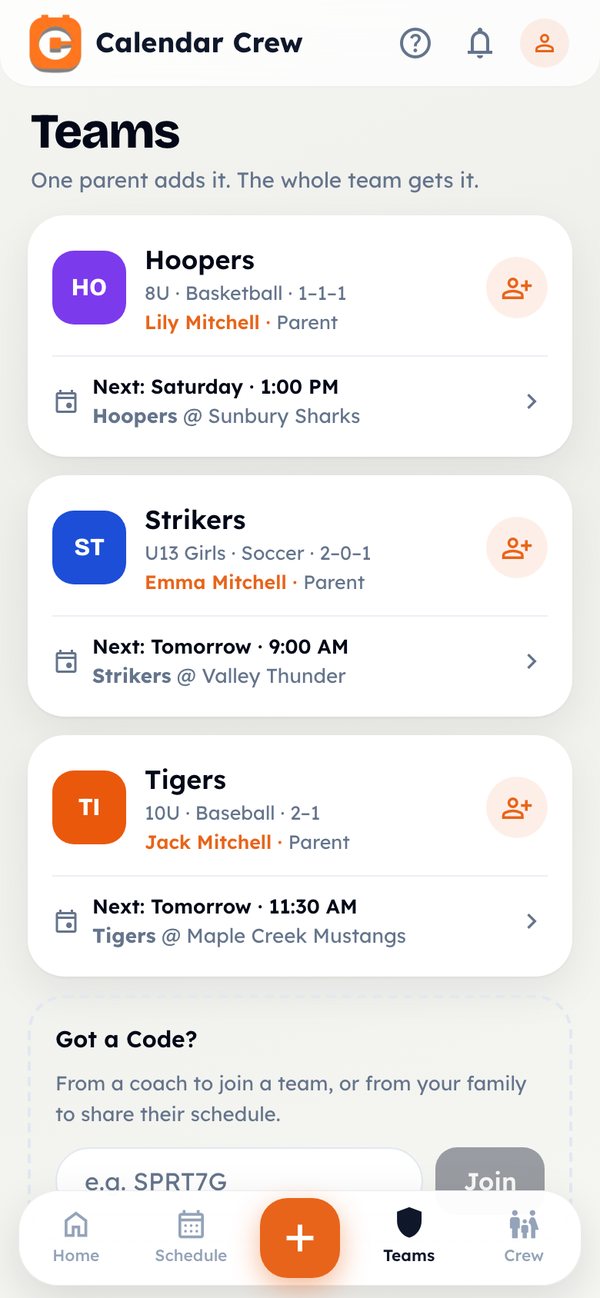
Got a code from a coach or team parent?
- Tap Teams.
- Under Got a Code?, enter the code and tap Join.
(Or tap + → Join a Team.) The team's games and practices now show up on your schedule. Put your kid on the roster so their name is on the games.
The same box takes a code from another family, if they want to share their schedule with you.
Start a Team
Nobody's set the team up yet? You can.
- Tap Teams → New Team (or + → New Team).
- Enter the team's name and sport.
- Turn on I Coach This Team if you're a coach. Otherwise you're the team admin. You can manage the team either way.
- Choose How Early Do Players Arrive for Games? Every game shows Arrive By from this.
- Add your kids to the roster, and a logo and other details if you like. All optional.
- Tap Create Team.
Bring the Other Parents
On the team's page, the Bring the [Team] Parents card has the team code and a share button. Send it to the team group text. Each family who joins gets every game and time change, without typing a thing.
On the Free plan, a family can have 2 teams in season at a time. Crew Plus covers every team. See Free and Crew Plus. One account can create up to 20 teams.
Your Role on a Team
On the Teams tab, each team shows your role:
- Admin: coaches and team admins. They manage the team, its schedule and roster, and post announcements.
- Parent: your kid is on the roster.
- Follower: you follow the team's schedule.