Invite Co-Parents and Family
Your crew is everyone who helps get the kids there: co-parents, stepparents, a nanny, the neighbor who drives on Tuesdays. They use the app and see what you choose.
For grandparents and fans who just want to follow along, a private link is easier. See Grandparents and Fans.
Send an Invite
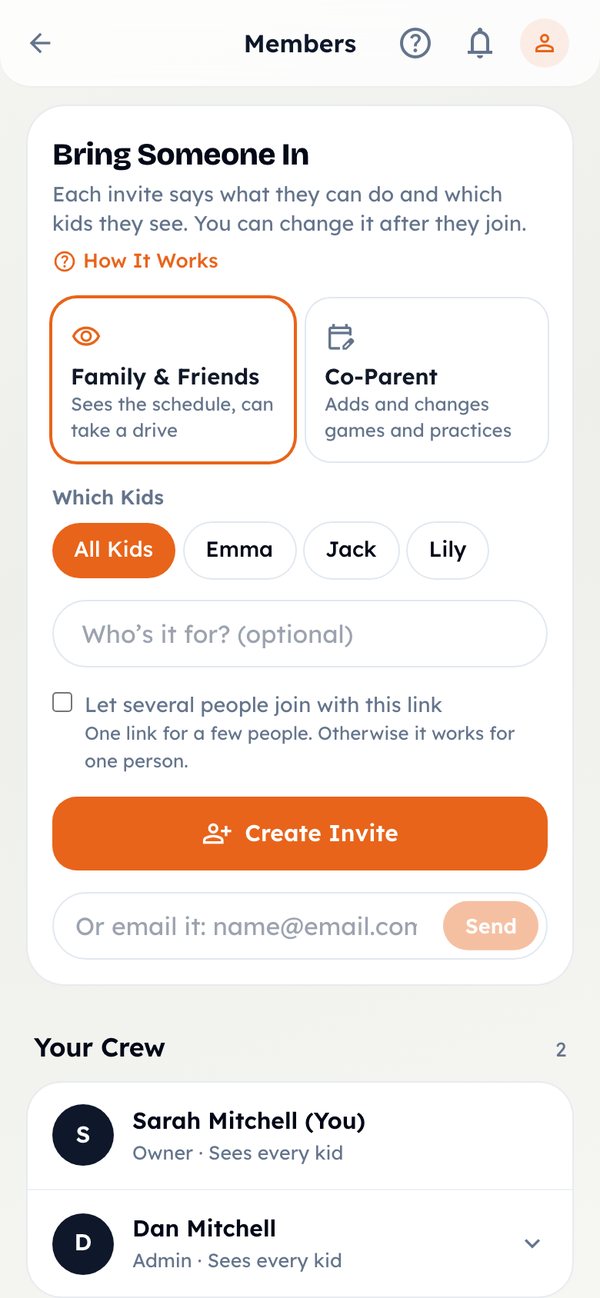
- Tap Crew → Invite to Crew. (Or Settings → Members.)
- Who's it for? Add a name. It's optional, but it helps you keep track.
- Choose what they can do:
- Co-Parent: adds and changes games and practices.
- Family & Friends: sees the schedule and can take a drive.
- Which Kids: All Kids, or pick the ones they help with.
- Tap Create Invite, then send it however you like: the share sheet, the link, the code, or Or email it to send it from us.
Each invite works for one person for 14 days. To let a few people use the same link, turn on Let several people join with this link before you create it.
Only family admins can invite people. A family can have up to 6 people in its crew on Free, or 10 with Crew Plus. Teen accounts and followers don't count, and you can have as many followers as you like.
Joining a Family
The person you invite:
- Opens the link and taps Create Account (or Sign In if they already have one).
- Is in your family right away.
Got a code instead of a link? Tap Crew → Got an Invite Code?, enter it and tap Join.
Manage Invites
Under Open Invites you'll see invites nobody has used yet. Share one again, or turn it off so it stops working.
Change What Someone Can Do
- Go to Settings → Members and tap the person.
- Change any of these:
- What They Can Do: Add & Edit (adds events, drives, keeps score), View Only (sees the schedule, can take a drive), or Admin (everything, plus manages the crew).
- Kids They See: none picked means every kid.
- Who They Are and Name in Your Crew.
- Tap Save.
To take someone out, tap Remove from Crew.