Grandparents and Fans
Grandparents, aunts, uncles and family friends can follow the kids' games with a private link. No app, no account, nothing to install.
Add a Follower
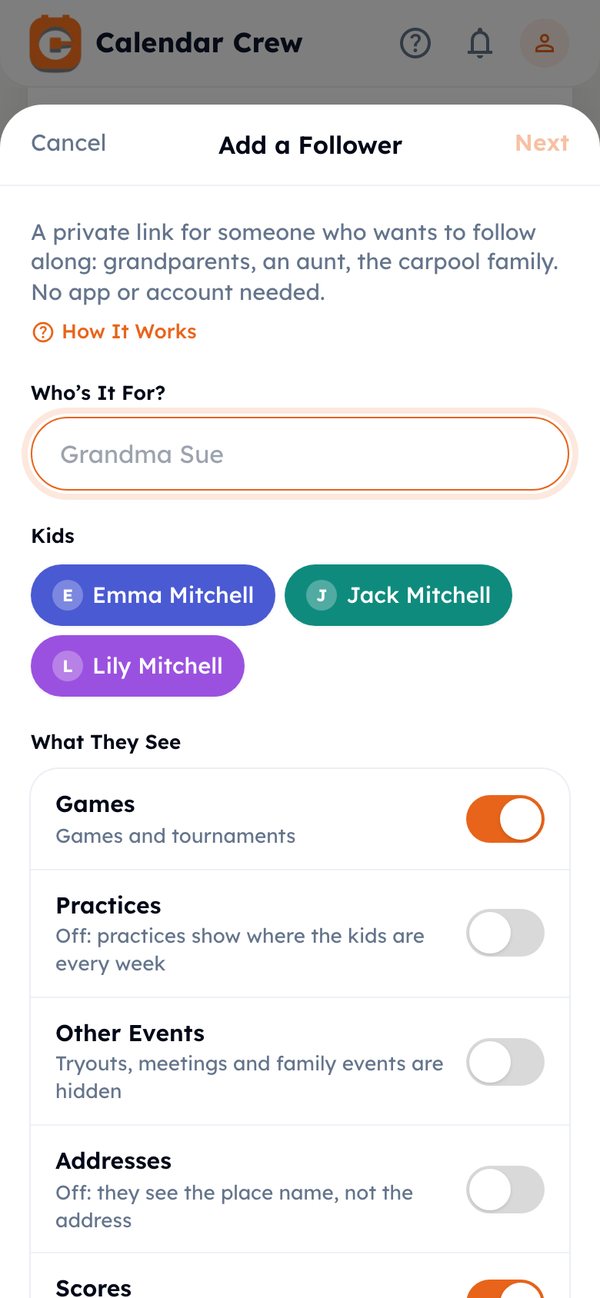
- Tap Crew → Add a Follower. (Or on a kid's page, tap Share Schedule.)
- Who's It For? Enter their name, like "Grandma Sue."
- Pick the Kids they follow.
- Choose What They See (see below). New links start with games only and no addresses.
- Tap Next, then send them the link in a text, or tap Copy Link.
They open the link on any phone or computer and see the schedule. From there they can add it to their own calendar (Add to iPhone or Add to Google), or tap Save to Your Home Screen so it opens like an app.
On iPhone, if the share sheet doesn't open right away, you'll see Your Link Is Ready: tap Share there.
A Link Follows the Kids
A follower link shows the kids, wherever their schedule lives. If Grandpa follows two grandkids in two different families, one link covers both.
Anyone who can see a kid, view-only included, can make a follower link for them. The kid's parents see every link that includes their kid, get a heads-up when one is made, and can take their kid off it.
What They See
Turn each one on or off:
- Games: games and tournaments.
- Practices: shows where the kids are every week.
- Other Events: tryouts, meetings and family events.
- Addresses: street addresses and directions. When it's off, they see the place name, not the address.
- Scores: final scores after each game, and the live score while you're keeping score.
Changes apply to their link right away.
Change or Turn Off a Link
Tap the follower under Following Along in Crew:
- Change what they see and tap Save.
- Send Link Again if they lost it.
- Turn Off Link: their link and calendar stop working right away. You can make a new one later.
Followers Can Drive Too
On an event's Rides, you can pick a follower as the driver and text them the details. See Who's Driving.