Connect Team Apps and Calendar Links
If your team already keeps its schedule somewhere (TeamSnap, GameChanger, a school website, a league), connect it once. New games, time changes and cancellations then come into Calendar Crew on their own.
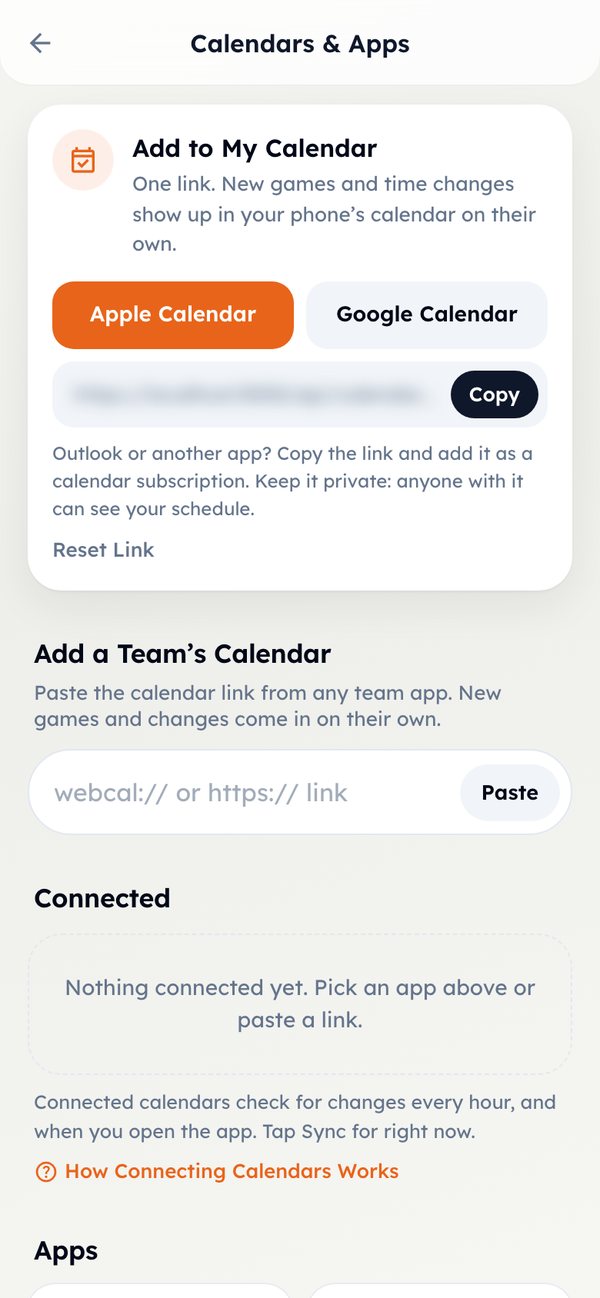
Open it from Settings → Calendars & Apps, or tap + → Connect an App.
TeamSnap
- In Calendars & Apps, tap TeamSnap.
- Sign in to TeamSnap and allow access.
- You're back in Calendar Crew with your TeamSnap teams coming in.
GameChanger, Heja, ParentSquare, SportsEngine, LeagueApps
These apps give you a calendar link to copy.
- In Calendars & Apps, tap the app. You'll see where to find its calendar link (usually under Subscribe, Share or Export).
- Copy the link in that app.
- Back in Calendar Crew, paste it into Calendar Link.
- Pick Whose Schedule? (see below) and tap Add.
Any Other Calendar Link
School, league, club or a shared Google calendar? If it has a calendar link (often starting with webcal:// or https:// and ending in .ics):
- In Calendars & Apps, paste it under Add a Team's Calendar and tap Next. (Or tap Any Other App.)
- Give it a Name, like "WHS Girls Basketball."
- Pick Whose Schedule? and tap Add.
We recognize links from the apps above and tell you, for example, "Looks like a GameChanger link."
Whose Schedule?
- A kid: the events go on that kid's schedule.
- A whole team: the events go to every family on the team, not just yours. Use this for a school or club schedule that the whole team follows. Only one parent needs to connect it.
You can change it later: under Connected, tap the line under the calendar's name. Events it already added move too, and nobody gets an alert for the move.
What to Bring In
School and club calendars often include lifting, film, meetings and more. Under Connected, tap the line under the calendar's name and choose:
- Everything: every event on the calendar.
- Games Only: games and tournaments.
- Games & Practices: leaves out meetings, lifting and the rest.
Which Level
If a calendar has games for more than one level (like JV and Varsity), choose the level your kid plays. Only those games come in. Practices and anything that doesn't name a level still come in. Choose All to get every level.
When you narrow what comes in, events that are left out are taken off the schedule for everyone who sees that calendar. Nobody gets an alert. Widen it again and they come back.
Make It the Team's Calendar
Connected a calendar for your kid that's really the whole team's? On the team's page, tap Make It the Team's Calendar. Now every family on the team gets the games and changes. See Team Calendar, Announcements and Roster.
Keeping Up to Date
- Connected calendars check for changes every hour, and when you open the app.
- Want it right now? Tap Sync next to the calendar, or on Schedule tap ⋯ → Check for Updates.
- If a link stops working, you'll see "Not updating since…" in red. Copy the link again from the other app and add it again.
Remove a Calendar
Tap ✕ next to it under Connected. Events it already added stay on your calendar.
A family can connect up to 10 calendars. Remove one you don't use to add another.
Forward Schedule Emails
No calendar link? Some schools and coaches only send the schedule by email. Forward those emails to your family's own schedule address, and we read the games, practices and changes out of them.
- In Calendars & Apps, find Forward Schedule Emails and tap Copy to copy your family's address.
- Save it as a contact, like "Calendar Crew."
- When a schedule email arrives, forward it to that address from the email you use for Calendar Crew.
- You'll get a notification, Schedule from Your Email. Tap it to check the events, then save them. Nothing goes on the calendar until you do.
If the email moves or cancels a game that's already on your calendar, the review shows it as a change.
Only people in your family who can add events can forward, and only from the email address they sign in with. Each forwarded email counts as one schedule import (see Free and Crew Plus).
Calendars Someone Else Runs
If someone else connected a calendar for a kid you can see (say, the other parent connected the school calendar), it shows under Connected too, marked with who manages it. You can see it, but only they can change it.
Google Calendar
Google Calendar works a little differently: it syncs both ways. See Google Calendar Sync.